August 18, 2022

How to call solidity functions with Web3, metamask library

Public view/pure functions can be simply called. However, in other cases, you need to log in because of gas fee. It can be done with metamask.


public view/pure 함수는 간단히 호출할 수 있다. 그러나 그 외의 경우는 가스비를 제출해야하므로 로그인이 필요하다. 이를 위해 여기서는 메타마스크를 활용하는 방법을 알아본다.


1. public view/pure function

<script src="https://cdn.jsdelivr.net/npm/web3@1.7.3/dist/web3.min.js"></script>

<script>
const rpcPolygon = "https://polygon-rpc.com";
let web3 = "";
let contract1 = "";
async function main(){
    web3 = await new Web3(rpcPolygon);
    contract1 = await new web3.eth.Contract( [ABI], [Contract Address] );
} main();

async function callTmp(){
    contract1.methods.[function name]().call({from: [wallet address]})
    .then(function(result){
        console.log(result);
    })
    .catch(async function(e){
        console.log(e);
    });
}
</script>


Write the JavaScript code as above. It is used by calling the callTmp() function when necessary.


위와 같이 자바스크립트 코드를 작성한다. 필요할 때 callTmp() 함수를 호출하여 사용한다.


2. public function

<script src="https://cdn.jsdelivr.net/npm/web3@1.7.3/dist/web3.min.js"></script>

<script>
let web3 = "";
let contract1 = "";
async function main(){
    web3 = await new Web3(window.ethereum);
    contract1 = await new web3.eth.Contract( [ABI], [Contract Address] );
} main();

async function callTmp(){
    let param = {
        from: [my address],
        to: [contract1 address],
        value: [send coins if you want],
        data: contract1.methods.[function name]().encodeABI()
    };

    ethereum.request(
    {
        method: 'eth_sendTransaction',
        params: [param]
    })
    .then(async function(txHash){
        let receipt = null;
        while(receipt == null){
            receipt = await web3.eth.getTransactionReceipt(txHash);
            await sleep(3000);
        }
        console.log("Txhash:", receipt.transactionHash);
    })
    .catch(async function(error){
        console.log(error);
    });
}

async function sleep(milliseconds) {
    return new Promise(resolve => setTimeout(resolve, milliseconds))
}
</script>


Metamask uses the ethereum.request() function to generate a transaction. As before, proper use of the callTmp() function can help.


메타마스크에서는 트랜잭션 발생을 위해 ethereum.request() 함수를 사용한다. 이전과 마찬가지로 callTmp() 함수를 적절히 사용하면 도움이 될 수 있다.


August 17, 2022

How to initialize Web3 library in Javascript

To use Web3, there are two ways to enter an RPC address or use a metamask.
Web3를 사용하려면 RPC 주소를 입력하거나 메타마스크를 이용하는 방법이 있다.


1. Using RPC Address (Polygon Network).
1. RPC 주소를 입력하는 방법(폴리곤 네트워크).

<script src="https://cdn.jsdelivr.net/npm/web3@1.7.3/dist/web3.min.js"></script>

<script>
const rpcPolygon = "https://polygon-rpc.com";
let web3 = "";
let contract1 = "";
async function main(){
    web3 = await new Web3(rpcPolygon);
    contract1 = await new web3.eth.Contract( [ABI], [Contract Address] );
} main();
</script>


2. Using metamask.
2. 메타마스크를 이용하는 방법.

<script src="https://cdn.jsdelivr.net/npm/web3@1.7.3/dist/web3.min.js"></script>

<script>
let web3 = "";
let contract1 = "";
async function main(){
    web3 = await new Web3(window.ethereum);
    contract1 = await new web3.eth.Contract( [ABI], [Contract Address] );
} main();
</script>


February 01, 2022

How to print coordinates on the screen with Python


import matplotlib.pyplot as plt

x = [100, 500, 100, 500 ]
y = [100, 500, 500, 100 ]

plt.fill(x, y, color="lightgray")
plt.show()


Using Python's matplotlib module, displaing coordinates is simple. However, the system must support GUI.

파이썬의 matplotlib 모듈을 이용하면 간단히 좌표를 표시할 수 있다. 다만, 시스템이 GUI를 지원해야 한다.


Make two lists to store X, Y coordinates. And enter it in the fill() function. Then, the coordinates are automatically represented by the pair. If you specify a color in the color option, you can paint the interior of the coordinate.

x, y 좌표는 각각의 리스트로 생성한다. 이를 fill() 함수에 입력하면 자동으로 쌍을 지어 좌표가 표현된다. color 옵션에 색을 지정하면 좌표 내부 공간을 칠할 수도 있다.


How to convert TTF to TTX(XML) with Python


Converting font files using Python is simple. Just call the saveXML() function of the fontTools module. 


파이썬을 이용한 폰트 파일 변환은 간단하다. fontTools 모듈의 saveXML() 함수를 호출하면 된다.


from fontTools.ttLib import TTFont

font = TTFont("xxx.ttf")
font.saveXML("xxx.ttx")

1. Input TTF and create an object with TTFont().
2. Call the saveXML() method of the object to save it.
3. Check the generated TTX file in the same directory as the Python file.

1. TTF를 입력하여 TTFont()로 객체를 생성한다.
2. 해당 객체의 saveXML() 메소드를 호출하여 저장한다.
3. 파이썬 파일과 같은 디렉터리에 생성된 TTX 파일을 확인한다.

December 13, 2021

How to update WSL1 to WSL2


WSL1 cannot run 32-bit ELF files, so the update to WSL2 is required. The process is as follows.


WSL1은 32비트 ELF 파일을 실행할 수 없으므로 WSL2로 업데이트가 필요하다. 해당 과정은 아래와 같다.


1. Check the version.
버전 확인.

> wsl -l -v
  NAME            STATE           VERSION
* Ubuntu-20.04    Stopped         1


If the WSL version is 1 when you enter the above command in CMD or Powershell, you need to update it.


CMD 또는 파워쉘에서 위와 같이 명령어를 입력했을 때 WSL 버전이 1로 나온다면 업데이트할 필요가 있다.


2. Enable VirtualMachinePlatform option.
VirtualMachinePlatform 옵션 활성화.

> dism.exe /online /enable-feature /featurename:VirtualMachinePlatform /all /norestart


Reboot after entering the above command. 


위 명령어를 입력 후에는 재부팅한다.


3. Install Linux Kernel Components.
리눅스 커널 구성요소 설치.

Windows Subsystem for Linux Update Setup (Link)


Reboot after installation is complete. 


설치 완료 후 재부팅한다.


4. Apply WSL2.
WSL2 적용.

> wsl --set-version Ubuntu-20.04 2

변환이 진행 중입니다. 몇 분 정도 걸릴 수 있습니다...
WSL 2와의 주요 차이점에 대한 자세한 내용은 https://aka.ms/wsl2를 참조하세요
변환이 완료되었습니다.

> wsl -l -v
  NAME            STATE          VERSION
* Ubuntu-20.04    Stopped        2


For the application target, input what is written in "NAME". If the WSL2 application is successful, you can see the string "Conversion is complete" and the number in "VERSION" is changed.


적용 대상은 "NAME"에 적혀있는 것을 입력한다. WSL2 적용 성공 시 "변환이 완료되었습니다."라는 문자열을 확인할 수 있으며 "VERSION"의 숫자가 변경된다.


August 20, 2020

How to free TCP port 9001


TCP 9001 port


If the System process occupies port 9001 as shown in the picture above, the following solution can be helpful.


만약 위 그림과 같이 9001번 포트를 System 프로세스가 점유하고 있다면, 아래와 같은 해결 방법이 도움이 될 수 있다.


Intel(R) Graphics Command Center Service at services


Stop "Intel(R) Graphics Command Center Service" from "run → compmgmt.msc → services". Then the occupied port 9001 is released.


"실행 → compmgmt.msc → 서비스"에서 "Intel(R) Graphics Command Center Service"를 중지한다. 그러면 점유 중이던 9001번 포트가 해제된다.


August 12, 2020

How to use scapy Python module

❑ How to read packets from pcap.
pcap 파일로부터 패킷 읽기.
from scapy.all import *

pks = rdpcap("./filename.pcap")

for pk in pks:
    if pk.getlayer("IP").sport == 4321:
        layerRaw = pk.getlayer("Raw")

❍ getlayer(): Select a specific network layer.
특정 네트워크 계층을 선택한다.

❍ sport: Source port. 소스 포트.


❑ continue...

May 02, 2020

How to add line number and syntax highlight using JavaScript.

SyntaxHighlighter.js library makes it easy to highlight line numbers and highlights.
SyntaxHighlighter.js 라이브러리를 이용하면 쉽게 라인 번호와 하이라이트가 가능하다.

Based on the code below, you can modify and use according to your preference.
아래의 코드를 바탕으로 개인에 기호에 따라 수정하여 사용하면 된다.


// Insert Source code Here.
function abc(){
    console.log("Hello, world!");
}

The "shBrushXXX.min.js" code is used for highlighting purposes. The computer language(syntax) you wish to highlight can be set to "class = 'brush: XXX;'" in the "pre" element.
"shBrushXXX.min.js" 코드는 하이라이트 목적으로 사용된다. 하이라이트를 희망하는 컴퓨터 언어(문법)는 "pre" 엘리먼트에 "class='brush:XXX;'"로 설정한다.

See the link below for detailed highlight settings.
세부 하이라이트 설정은 아래 링크를 참조한다.


You can specify the line number to start with "first-line: XXX". See the links below for detailed options.
"first-line: XXX"로 시작할 라인 번호를 지정할 수 있다. 기타 세부 옵션은 아래 링크를 참조한다.


September 09, 2019

How to check the hash value of a directory

In fact, by their nature, Directory file cannot be obtained hash value. However, hash of each file in the directory can be obtained.

디렉터리 파일은 그 특성상 해시 값을 구할 수는 없다. 하지만, 디렉터리에 포함된 각 파일의 해시값을 구할 수는 있다.

$ find [path] -exec sha256sum {} \; > 20190430.txt
$ find [path] -exec sha256sum {} \; > 20190530.txt
$ diff 20190430.txt 20190530.txt

The find command recursively traverse all the files in a directory. Then apply a hash command to each file and save the result in a specific file. You can then check the integrity by comparing the two files as needed.

find 명령어를 통해 재귀적인 방식으로 디렉터리 내부의 모든 파일을 순회한다. 그리고 각 파일에 대해 해시 명령어를 적용하여 그 결과를 특정 파일에 저장한다. 이후 필요한 시점에 두 파일을 비교하면 무결성을 점검할 수 있다.


$ find [path] -exec sha256sum {} \; 2>/dev/null | sha256sum
0e64e1ab31b2... *-

As you can see, the result of the traversal is entered again into the hash command, which can be expressed as a single line.

순회한 결과를 다시 해시 명령어에 입력하면, 간단하게 한 줄로 표현할 수 있다.

August 02, 2019

How to create a virtual host on a port basis at apache2/PHP7

1. After opening the "/etc/apache2/ports.conf" file, add the following information.

1. "/etc/apache2/ports.conf" 파일을 오픈한 뒤, 아래와 같이 정보를 추가한다.

# If you just change the port or add more ports here, you will likely also
# have to change the VirtualHost statement in # /etc/apache2/sites-enabled/000-default.conf

Listen 8961
Listen 4241
Listen 3317

- Add the port what you want to open using the keyword "Listen".

- 개방하고자 하는 포트를 "Listen" 키워드를 사용하여 추가한다.


2. After opening the "/etc/apache2/sites-available/000-default.conf" file, add the following information.

2. "/etc/apache2/sites-available/000-default.conf" 파일을 열람한 뒤, 아래와 같이 정보를 추가한다.

<VirtualHost *:8961>
    DocumentRoot /var/www/abc1
</VirtualHost>

<VirtualHost *:4241>
    DocumentRoot /var/www/abc2
</VirtualHost>

<VirtualHost *:3317>
    DocumentRoot /var/www/abc3
</VirtualHost>

- Reflect the port you registered in "ports.conf" to the VirtualHost tag.

- "ports.conf"에 등록했던 포트를 VirtualHost 태그에 반영한다.

- Set the root directory of the virtual host using the keyword "DocumentRoot".

- "DocumentRoot" 키워드를 사용하여 해당 가상 호스트의 루트 디렉토리를 지정한다.

May 19, 2019

How to enable root account in Ubuntu

The first time you install Ubuntu, you can not use the root account. Here we discuss how to activate it.

최초 Ubuntu를 설치하면 root 계정을 사용할 수 없다. 여기서는 이를 활성화하는 방법을 다룬다.


1. Set password for root account.  root 계정의 패스워드 설정.
$ sudo passwd root


2. Unlock.  잠금 해제.
How to enable root account in Ubuntu 1

Upper right gear icon → System Settings... → User Accounts → Unlock

우상단 톱니바퀴 아이콘 → System Settings... → User Accounts → Unlock


3. Enable root account login.  root 계정 로그인 활성화.
$ sudo vi /etc/lightdm/lightdm.conf

How to enable root account in Ubuntu 2

Write as above and save. Then reboot.

위와 같이 입력 후 저장한다. 이어서 재부팅한다.

March 01, 2019

How to open OVF file in Vmware.


Just follow the below.
아래를 그대로 따라하시면 됩니다.

OVF 파일 열기

OVF 파일 선택

OVF 저장 위치 선택

OVF 로드

OVF 로드가 완료된 상태.

January 01, 2019

How to make a shellcode using nasm and ld.

Write the following famous shellcode (23 Bytes) as a text file and save it as "mysh.s".
아래의 유명한 쉘코드(23 Bytes)를 텍스트 파일로 작성 후 "mysh.s" 이름으로 저장한다.

BITS 32
global _start

_start:
    xor eax, eax
    mov al, 11
    xor ecx, ecx
    xor edx, edx
    push ecx
    push 0x68732f2f
    push 0x6e69622f
    mov ebx, esp
    int 0x80

"int 80" is the assembly code that uses the system call to interrupt the CPU. On x86 architectures, put the number of the system call you want to call in eax, and on x64 architecture, in rax.

"int 80"은 CPU에 인터럽트를 걸어 시스템 콜을 사용하는 어셈블리 코드다. x86 아키텍처에서는 eax에, x64 아키텍처에서는 rax에 호출하고 싶은 시스템 콜의 번호를 넣으면 된다.

Functionx85x64arg 1arg 2arg 3
read30fdbufcount
write41fdbufcount
execve1159filenameargvenvp
dup26333oldnew
mprotect12510startlenprot

ArchitectureCodeNumberarg 1arg 2arg 3arg 4
x86int 0x80eaxebxecxedxesi
x64syscallraxrdirsirdir10


Enter the following command to make the shellcode executable file.
아래의 명령어를 입력하여 작성한 쉘코드를 컴파일한다.

# nasm -f elf32 ./mysh.s
# ld -m elf_i386 ./mysh.o

"nasm" is an assembler. It creates an object file(mysh.o).
"ld" is a linker. It makes an object file executable(a.out).

"nasm"은 어셈블러이며 오브젝프 파일을 생성한다(mysh.o).
"ld"는 링커이며 오브젝트 파일을 실행파일로 만든다(a.out).
* Linker and Loader[Link]

The supported architecture can be checked with the following command.
지원되는 아키텍처는 아래의 명령어로 확인할 수 있다.

# nasm -hf
# ld -mv 

The generated files have the following file formats.
생성된 파일들은 아래와 같은 파일 형식을 갖는다.

root@ubuntu:~/tmp/shellcode# file ./a.out ./mysh.o ./mysh.s
./a.out:   ELF 32-bit LSB executable, Intel 80386, version 1 (SYSV), statically linked, not stripped
./mysh.o: ELF 32-bit LSB relocatable, Intel 80386, version 1 (SYSV), not stripped
./mysh.s: ASCII text

Now run the generated shellcode to test that it works.
이제 생성된 쉘 코드를 실행하여 잘 동작하는지 테스트한다.

root@ubuntu:~/tmp/shellcode# ./a.out
# id
uid=0(root) gid=0(root) groups=0(root)
# echo "Abc"
Abc
# uname -a
Linux ubuntu 4.13.0-43-generic #48~16.04.1-Ubuntu SMP Thu May 17 12:56:46 UTC 2018 x86_64 x86_64 x86_64 GNU/Linux
#
# pwd
/root/tmp/shellcode
# echo $0

# bash
root@ubuntu:/root/tmp/shellcode# env | grep -i shlvl
SHLVL=1
root@ubuntu:/root/tmp/shellcode# exit
exit
# ps
   PID TTY          TIME CMD
  2118 pts/11   00:00:00 bash
  3466 pts/11   00:00:00 sh
  3483 pts/11   00:00:00 ps
# exit
root@ubuntu:~/tmp/shellcode#

It works well.
잘 동작한다.


Check environment  점검 환경
O   S Ubuntu 16.04(64 bits) CPU Intel i7
SHELL GNU bash (4.3.48) RAM 1 GB

November 19, 2018

How to install Android in VMware


Android 7.1 rc2 version is used.
안드로이드 7.1 rc2 버전이 사용되었음.


vmware android install accelerate 30 graphics

I recommend you allocate more than 2 GB of memory when adding images in VMware. If you set it to 1 GB, you can know what the pain is as the above video.

VMware에 이미지 추가 시 메모리는 2 GB 이상을 할당하는 것을 권고한다. 만약 1 GB로 설정하면 어떤 고통을 받는지 위의 영상에서 볼 수 있다.

Be sure to select "Accelerate 3D graphics" on the display. If you do not select this, only the Linux shell will be provided when running the OS.

디스플레이에서 3D 그래픽 가속을 반드시 선택한다. 이를 선택하지 않으면 OS 구동 시 리눅스 쉘만 제공된다.


vmware android install first screen.

Select "Installation - Install Adnroid-x86 to harddisk".
"Installation - Install Adnroid-x86 to harddisk" 선택.


VMware android install - partition

Select "Create/Modify partitions".
"Create/Modify partitions" 선택.


VMware android install - no gpt

Do not use GPT.
GPT 미사용.


VMware android install - new partition

Select "New".
"New" 선택.


VMware android install - primary partition

Select "Primary".
"Primary" 선택.


VMware android install - primary partition allocation

Press Enter key to apply the default setting.
기본 설정 그대로 엔터.


VMware android install - primary partition bootable

Select "Bootable".
"Bootable" 선택


VMware android install - write selection

Select "Write" and write "yes".
"Write" 선택후 "yes" 입력.


VMware android install - quit selection

Select "Quit".
"Quit" 선택.


VMware android install - sda1

Select "sda1".
"sda1" 선택.


VMware android install - sda1 format

Select "ext4".
"ext4" 선택.


VMware android install - sda1 format start

Start format.
포맷 시작.


VMware android install - grub

Install "GRUB".
"GRUB" 설치.


VMware android install - read write permission.

Grant read / write permission to the "/ system" directory.
"/system" 디렉토리에 읽기/쓰기 권한 부여.


VMware android install - end of install

Select "Reboot".
"Reboot" 선택.


November 11, 2018

How to use the authentication key to connect an SSH server

01. Generate the RSA authentication key.
RSA 인증 키 생성.
$ ssh-keygen -t rsa
Generating public/private rsa key pair.
Enter file in which to save the key (/home/user/.ssh/id_rsa): myKey2
Enter passphrase (empty for no passphrase): ******
Enter same passphrase again: ******
Your identification has been saved in myKey2.
Your public key has been saved in myKey2.pub.
The key fingerprint is:
SHA256:/lmbh■■■■■■■■wBD78■■■■■■■■■■7qPtXAbkw ■■■@■■■■■
The key's randomart image is:
+---[RSA 2048]----+
|  .+. .... o .   |
|    +. o  = *    |
|     +o .+ B E   |
|    . o.. B * + .|
|     . ■■■■■■■■■|
|       .■■■■■■■■|
|        . .++ + o|
|         . +.+ o |
|          o o    |
+----[SHA256]-----+
$
$ ls
myKey2  myKey2.pub  tmp
$
$ mv ./myKey* ./.ssh/

myKey2 is the name of the RSA authentication key. If the path is not recorded, it is created in the home directory. Absolute paths are recommended because strings such as tilde (~) can not be used.

myKey2는 RSA 인증 키의 이름이다. 경로를 기록하지 않으면 홈 디렉토리에 생성된다. 틸드(~) 같은 문자열은 사용할 수 없기에 절대 경로를 권장한다.

If you input a password when you create it, you must enter it every time you connect to the SSH server.

생성 시 비밀번호를 입력하면, SSH 서버에 접속할 때마다 그 비밀번호를 입력해야 한다.

Generated the public/private keys are usually stored in "[Home directory]/.ssh/".

생성된 공개키와 개인키는 일반적으로 "[Home directory]/.ssh/"에 모아둔다.


02. Register the key on the server.
서버에 키 등록.
[Client side]
$ cat ~/.ssh/myKey2.pub
ssh-rsa AAAAB3NzaC1yc2EAAAADAQABAAABAQDQ■■■■■■■■■■■■■■dw2H8IpjN2yUBtjidyHKFeXuPEXH■■■■■■■■■■■■■■nxR3sfimRzDk7wBOc/vBQniyZXImjL5b43n3aqqNXlhhv3QFD4R■■■■■■■■■■■■■■KZLKlLFoPUem2E6JVRqKLlUKt■■■■■■■■■■■■■■■■■■■■■wKJzsLojFRBdjWR0Bb0bz85HkVnsbBWm0LMcys■■■■■■■■■■■■■■87zQCoUXnpcUnFlx7l3RDjE+hGdjobJngZD9fkzRemni5z00rwHeC6dTjvctsrbmmaBle5M7nDcPlsujlPYR3LmzKZv41ExN8Yzkj71wLZm4K39 ■■■■■■■@■■■■■■■
$
$

[Server side]
$ vi /root/.ssh/authorized_keys

Copy the contents of the client's public key (*.pub) and paste it into the server's "authorized_keys" file.

클라이언트의 공개키(*.pub)의 내용을 복사하여, 서버의 authorized_keys 파일에 붙여넣는다.


03. Connect using the private key.
개인키로 서버에 접속.
$ ssh -i ~/.ssh/myKey2 root@192.168.■■■.■■■
Enter passphrase for key '/home/user/.ssh/myKey2':
Welcome to Ubuntu 16.04.4 LTS (GNU/Linux 4.13.0-43-generic x86_64)

 * Documentation:  https://help.ubuntu.com
 * Management:     https://landscape.canonical.com
 * Support:        https://ubuntu.com/advantage

369 packages can be updated.
186 updates are security updates.

New release '18.04.1 LTS' available.
Run 'do-release-upgrade' to upgrade to it.

Last login: Sun Nov 11 00:45:10 2018 from 192.168.200.198
root@ubuntu:~#
root@ubuntu:~#
root@ubuntu:~# id
uid=0(root) gid=0(root) groups=0(root)


Check environment  점검 환경
O   S Ubuntu 16.04(64 bits)
Cygwin_NT-6.1
CPU Intel i7
SHELL GNU bash (4.3.48) RAM 1 GB

July 02, 2018

How to use NcFTP client

NcFTP(NCEMRsoft FTP) client is a simple FTP(File Transfer Protocol) program alternative to the standard FTP client.

It has better performance than standard FTP client and supports multiple operating systems including UNIX, Linux, Windows and OS X.

Note that the following FTP server is a non-existent virtual server.


connect to a FTP server using NcFTP client

❑ ncftp -u [ID] [Server address] : Connect to a FTP server.
* #ncftp → />open -u [ID] [Server address] is also available.
❑ ls : List files.
❑ cd : Change directory.


upload and download at a FTP server using NcFTP client

❑ get [File path] : Download a file. The file is stored in the home directory.
❑ put [File path] : Upload a file. use slash(/) to the path instead of backslash(\).

July 01, 2018

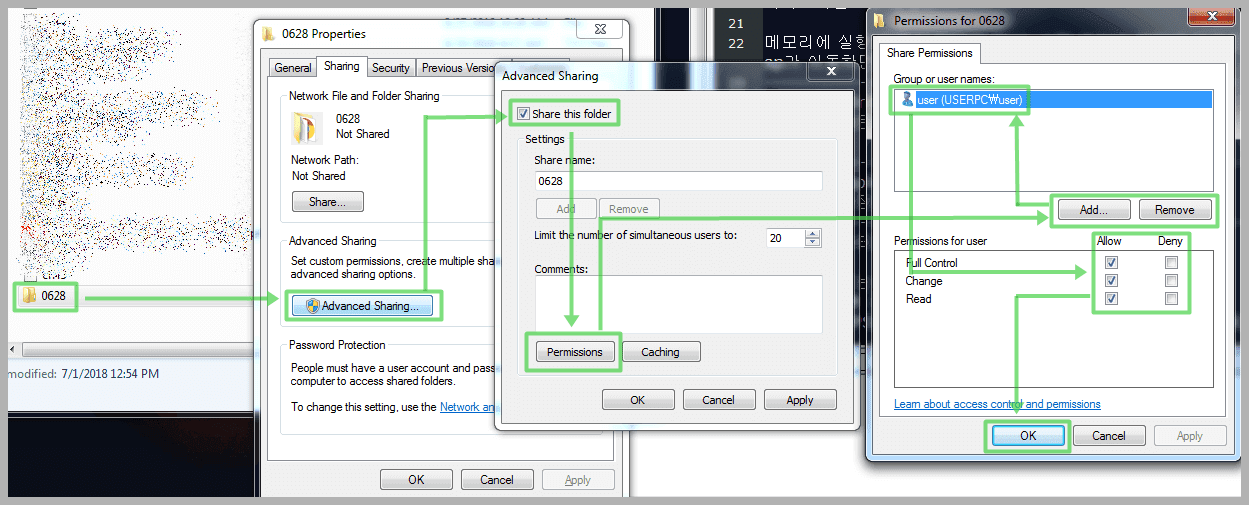
How to create a shared folder between Windows and Linux

To share a folder, I shared the windows folder and mounted it in Linux.

Follow the steps below with referring to the images.


How to create a shared folder between Windows and Linux's Windows side

[Step 1] Open the file's properties to share.

[Step 2] Move to "Sharing" tab and Click "Advanced Sharing".

[Step 3] Check "Share this folder" and click "Permissions".

[Step 4] Set proper user/group to allow approach using the "Add/Remove" button.

[Step 5] Set proper permission using "Allow/Deny" checkboxes and click "OK" multiple times.


Now, the folder is shared. Let's try to mount this folder on Linux.


How to create a shared folder between Windows and Linux's Linux side

[Step 1] Input the mount command : # mount -t cifs //[IP address]/[Folder name] [Mount path] -o username=[User name ],password=[Password]

[Step 2] Check shared status and use it.

※ If you want to unmount the shared directory, just use the command "umount".


Check environment
O      S Ubuntu 16.04 (64bit) CPU Intel i7
SHELL GNU bash (4.3.48) RAM 1 GB

Check environment
O      S Windws 7 (64bit) CPU Intel i7
RAM 8 GB

June 27, 2018

How to use Cygwin + C compiler + Notepad++


On Notepad++, It is possible to compile a C code program. To do it, Follow the below steps.


[Step 1] Install "i686-w64-mingw32-gcc" in Cygwin.
* # apt-cyg install i686-w64-mingw32-gcc
* Be careful. If you install other GCC such as "gcc-core", It can't be executed in windows CMD because it is going to have the dependency on Cygwin DLL file.

[Step 2] Install NppExec plugin at Notepad++.

[Step 3] Make a C code program.

[Step 4] Press execute menu(F6) of NppExec.

[Step 5] Copy and paste the below script and click OK.

npp_save
CD C:\cygwin64\bin\
i686-w64-mingw32-gcc "$(FULL_CURRENT_PATH)" -o "$(CURRENT_DIRECTORY)\$(NAME_PART).exe"
npp_run $(CURRENT_DIRECTORY)\$(NAME_PART).exe

※ View all process in the video.

How to use Google Chrome debugger(Break point)

Google Chrome debugger line number

Open the Google Chrome developer mode(F12) and click "Sources" tab.

At the left side, you will find some HTML files.

Select the HTML file to debug. If the source code is invisible, refresh the page(F5).

When you click a line number, It is checked. It is called the breakpoint. The breakpoint is recorded right side's "Breakpoints" list.


Google Chrome debugger resume button

When refreshing the page, the breakpoint will work.

But if you don't want to debug anymore, click the resume button(F8).


Google Chrome debugger step over button

If you want to run a line of source code, click the step over button.


Google Chrome debugger step into button

If you want to go into a function, click the step into button.


Google Chrome debugger step out button

If you want to exit a function, click the step out button.


※ I personally don't recommend you the step button(→). Because this runs every single source, debugging can be disturbed by moving to an unintended location. So I will not introduce it here.


June 11, 2018

How to install pydbg

pydbg is installed

Because the pydbg is not a official Python module, correct install guide is needed. It can't be installed using pip2 or pip3.


Step 1. Install Python 2.x and add the installed Python 2.x to environment variable.
* In my case, I installed Python 2.7.3.


Step 2. Install the "paimei".
1. Download the paimei.
2. There is install file "PaiMei-1.2.win32.exe" in the folder "dist".
3. Click next and next.


Step 3. Overwrite "pydasm.pyd".
1. Download the pydasm.pyd.
2. Go to "C:\Python27\Lib\site-packages\pydbg" and overwrite the pydasm.pyd


Step 4. Test using import.
1. Open the CMD and execute Python.
2. Import the pydbg.
>>> import pydbg


※ If you get an error installing pyodbc, I recommend to reinstall the Python 2.x. I tried many other methods to fix it but it was not worked.